How Do I Isolate a Character from a Busy Scene for a PFP?
Creating a perfect profile picture (PFP) is an art form in itself, especially when you want to isolate a character from a busy scene. With the rise of platforms like Discord, where avatars are small, often viewed on mobile devices, and appear in both light and dark modes, it’s essential to prioritize clarity, simplicity, and readability. In this comprehensive guide, we’ll walk you through how to remove backgrounds, simplify backdrops, and create a subject cutout that’s both visually striking and functional as a PFP.
Why Isolation Matters for a Profile Picture
A busy scene can be beautiful in artwork or gaming screenshots but rarely works well as a profile picture. When reduced in size, details blend, backgrounds become noise, and important facial expressions get lost. Isolating your character ensures:
- Silhouette recognition: Easily identifiable shapes at a glance
- Mobile-first readability: Clear visuals even on tiny smartphone screens
- Contrast and separation: The character stands out without distraction
- Face and expression clarity: Your avatar conveys emotion and personality clearly
Step 1: Removing the Background
The first technical step in isolating a character is removing the background. This process—often called creating a subject cutout—separates your character from the busy environment. Here’s how to approach it effectively.
Tools You Can Use
- Discord’s built-in tools: While Discord doesn’t directly offer editing tools, you can preview avatars there after editing externally.
- Free AI background removers: Websites like remove.bg or apps such as Adobe Express Background Remover can auto-detect and isolate the subject.
- Manual editing software: Tools like Photoshop, GIMP, or Affinity Photo offer greater precision with lasso or pen tools.
Best Practices for Background Removal
- Choose a clear, high-resolution starting image: The better the resolution, the easier it is to isolate details.
- Focus on clean edges: Use feathering sparingly to avoid blurry edges that get lost on Discord’s circular crop.
- Check both light and dark modes: Discord users toggle between themes; make sure your cutout isn’t lost against either background.
Step 2: Simplifying the Backdrop
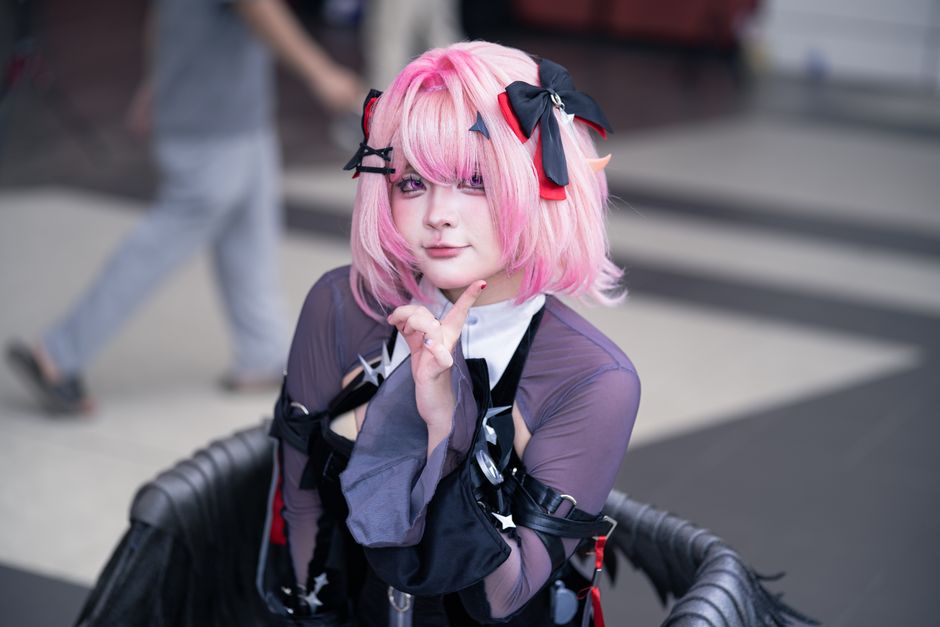
Once you’ve isolated your character, consider how your background influences readability. A busy backdrop can sneak back in as noise behind your subject. Here are crucial concepts for simplifying backgrounds with profile pictures in mind.
Why You Need a Simple Backdrop
Busy or textured backgrounds create visual confusion at small sizes. They distract from the character’s silhouette and reduce overall impact.
Background Options for PFPs
- Solid colors: The simplest choice is a high-contrast solid color that makes your character pop. For example, dark blue behind a light character, or white behind a dark silhouette.
- Gradient backgrounds: Subtle gradients add depth but stay soft enough to avoid intrusion.
- Blurry or faded textures: If you want some flair, using a blurred version of the original background can add atmosphere without competing with the character.
- Transparent backgrounds: Useful so the PFP adapts to Discord’s theme automatically, but this requires your silhouette and character details to be very strong.
Testing Your Background Choice
Always preview your avatar in Discord. Upload your edited file and view it in:
- Dark mode
- Light mode
- Mobile view, including pinned chats and friend lists
This helps ensure your background option supports clarity in all common contexts.
Step 3: Focusing on Silhouette Recognition
Silhouettes are the foundation of strong, recognizable avatars. Even when viewed at a tiny size, a well-designed silhouette conveys what the image is about. Here’s how to optimize that.
What Makes a Good Silhouette?
- Distinctive shape: Avoid merging limbs or accessories into the backdrop, which leads to ambiguity.
- Simple outlines: Busy edges or many small spikes get lost and blur together at small sizes.
- Large, balanced proportions: Maintain a good face-to-body ratio within the crop so expressions remain visible.
Tips to Improve Silhouette in Your Cutout
- Crop preview in a circle: Since Discord uses circular crops, preview your avatar this way, not square. This prevents essential character parts from being cut off.
- Add stroke or rim lighting: A subtle outline or halo in a contrasting color can enhance separation from background colors.
- Keep accessories minimal: If they clutter the silhouette, consider removing or simplifying them to maintain clarity.
Step 4: Ensuring Face and Expression Clarity
Your avatar often represents you, and its facial https://purepfp.com/why-bold-game-characters-remain-recognisable-in-tiny-profile-icons/ expression communicates personality. Users connect more strongly with faces they can read, even at small sizes.
Why Faces Matter in PFPs
Faces with visible eyes, mouth, and unique features capture attention and create a more personal connection. In guild chats or esports team pages on Discord, faces help members spot you instantly.
How to Make Expressions Readable
- Zoom in on the character’s face: Crop close enough to show detail but balanced so the face isn’t cramped.
- Avoid tiny text or symbols on the face: These get pixelated and look noisy.
- Use bright highlights on eyes and mouth: Subtle reflections or color contrasts help these important features pop.
- Keep shadows clean: Heavy shading can muddy facial features at small resolutions.
Practical Example: Creating a PFP from a Game Screenshot
Let’s walk through a sample process:
- Source an image: You have a vibrant character screenshot from your favorite game.
- Open it in an editor: Use Photoshop or a free alternative.
- Remove the background: Use an AI assist tool, refine edges manually to avoid fuzzy outlines.
- Simplify the backdrop: Replace with a solid high-contrast color that complements your character.
- Crop to a circle focusing on the head and shoulders: This keeps facial expressions front and center.
- Add a subtle rim light: Choose a color contrasting your background for better silhouette separation.
- Export in PNG with transparency: Allows easy viewing in Discord and other apps.
- Upload to Discord and test in multiple modes and devices: Adjust as needed.
Common Mistakes to Avoid
Mistake Why It's a Problem How to Fix It Using tiny text on avatar Text becomes unreadable noise at PFP size Remove text or replace with iconic shapes or logos Cropping too tightly on the face Expression becomes unclear; too little negative space Crop to head and shoulders to keep balance Leaving busy background elements Delivers visual noise, making character hard to distinguish Use simple solid or gradient backgrounds or transparent Ignoring Discord’s circular crop preview Important parts get cut off Always preview and crop with a circle mask in editorConclusion
Isolating a character from a busy scene for your Discord PFP is about striking a balance between visual impact and clarity. Prioritize a clear silhouette, simple and contrasting backgrounds, and emphasizing facial expressions that connect with viewers. Remember to always preview your avatar on both light and dark modes, and test on mobile devices before finalizing.
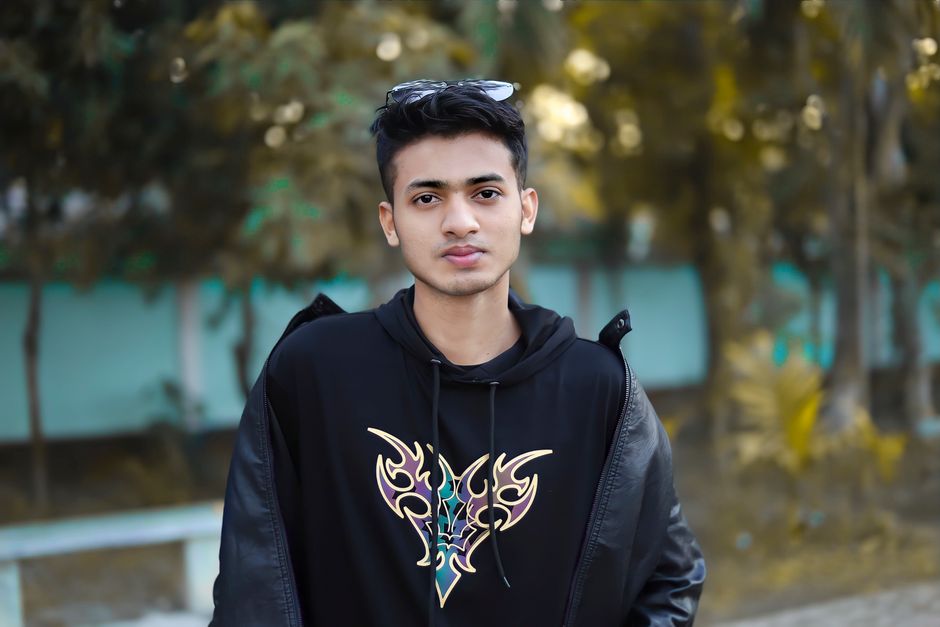
By following these steps—removing background, simplifying backdrop, focusing on silhouette recognition, and ensuring face clarity—you will create avatars that not only look great but are instantly recognizable in the bustling world of Discord and gaming communities.
Happy avatar crafting!